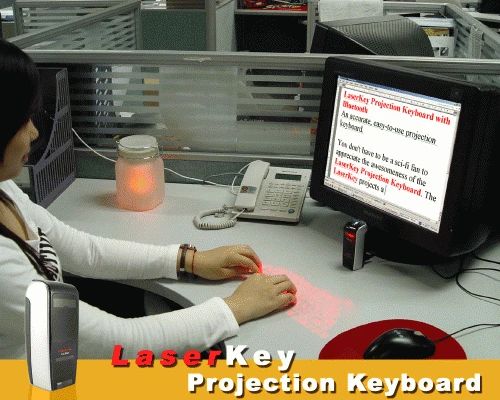
Laserkey Projection Keyboard With Bluetooth
LaserKey Projection Keyboard with Bluetooth
[CVGE-B06]
Primary Function: Projection Keyboard and Mouse
Light Source: Red laser diode
Keyboard layout: 17mm sized QWERTY layout
Keyboard size: Approx. 240mm*105mm
Illumination: Visible in incandescent light of 1800 lux or more
Power source: Internal lithium ion battery
Compatible Operating Systems:
- Microsoft Windows Mobile 2003 Pocket PC, Smartphone
- Microsoft Windows Mobile 5.0 Pocket PC, Smartphone
- Microsoft Windows Mobile 6.0 Pocket PC, Smartphone
- Palm OS 5.x
- RIM OS for Blackberry
- Microsoft Windows 2000/XP/Vista
- Symbian OS s60 3rd Edition (for Nokia)
Certifications: FCC, CE
Manufacturer Ref: XM869XKHLX
Catalog Ref: Projection Keyboard, Bluetooth Projection Keyboard, Bluetooth Keyboard,
Product Notes
Audible "clicks" provide responsiveness while you type
Keyboard is highly visible, even in a brightly lit office
Works best on a non-reflective, flat, opaque surface
Package Contents
LaserKey Projection Keyboard
English user manual
AC adapter 100-240V, 50/60Hz
Carrying case
USB cable
CD (includes drivers for Blackberry, Palm, PC, PocketPC, Smartphone, and Symbian, as well as English and Korean user manuals)
FAQ - Frequently Asked Questions
Is it hard to use? Just like the first time you used a keyboard, you may have to practice a few times to get a feel for the location of the keys. If you already type well on a traditional keyboard (no peck-and-choosing), it should take you about 10 minutes of practice to get up to speed on this keyboard.
How fast can I type on this keyboard? If you're a speed demon, you will appreciate this keyboard's speed and responsiveness. The LaserKey Projection Keyboard can support about 400 characters per minute.
Does this projection keyboard work with my language? This keyboard works exactly the same as a regular USB keyboard. If you use a specific input software for your language, this keyboard will function exactly the same as a regular keyboard would. But the keys displayed by the Projection Keyboard do not change languages. They are fixed as the standard English QWERTY keys in the pictures above. You can type Latin characters and additional symbols using the "FN" key, such as: ?, è, ?, ?, ù.
How do I switch between using the keyboard and the mouse? One key on the projected keyboard allows you to switch between using the keyboard and the mouse functions.
Can I adjust the volume of the clicks I hear from the projection keyboard? Yes, press (don't hold) the "FN" key and then press "Ins" to increase the volume. Or press "FN" then "Del" to decrease the volume.
Potrebbe interessarti anche
- Purple laser pointer (black metal edition) (prodotto)
- Car steering wheel bluetooth adapter + wireless earpiece (prodotto)
- Flexible mini bluetooth headset - a2dp profile (prodotto)
- Iphone battery pack and charger + speaker (prodotto)
- Bluetooth wireless headset (cosmopolitan edition) (prodotto)
Via Emilia all'Ospizio 66/M, 42122 Reggio nell'Emilia - Via Emilia (Reggio Nell'emilia)
Telefono: +39 0522420216 - +39 3491641491 Fax: +39 0522420216
Partita IVA: 02380060356
Rete: dacaelectronics.reteimprese.org
Settore: Elettronica ed Elettrotecnica
Categoria: Apparecchiature Elettroniche Scrivici su WhatsApp
Preferenze Cookie